

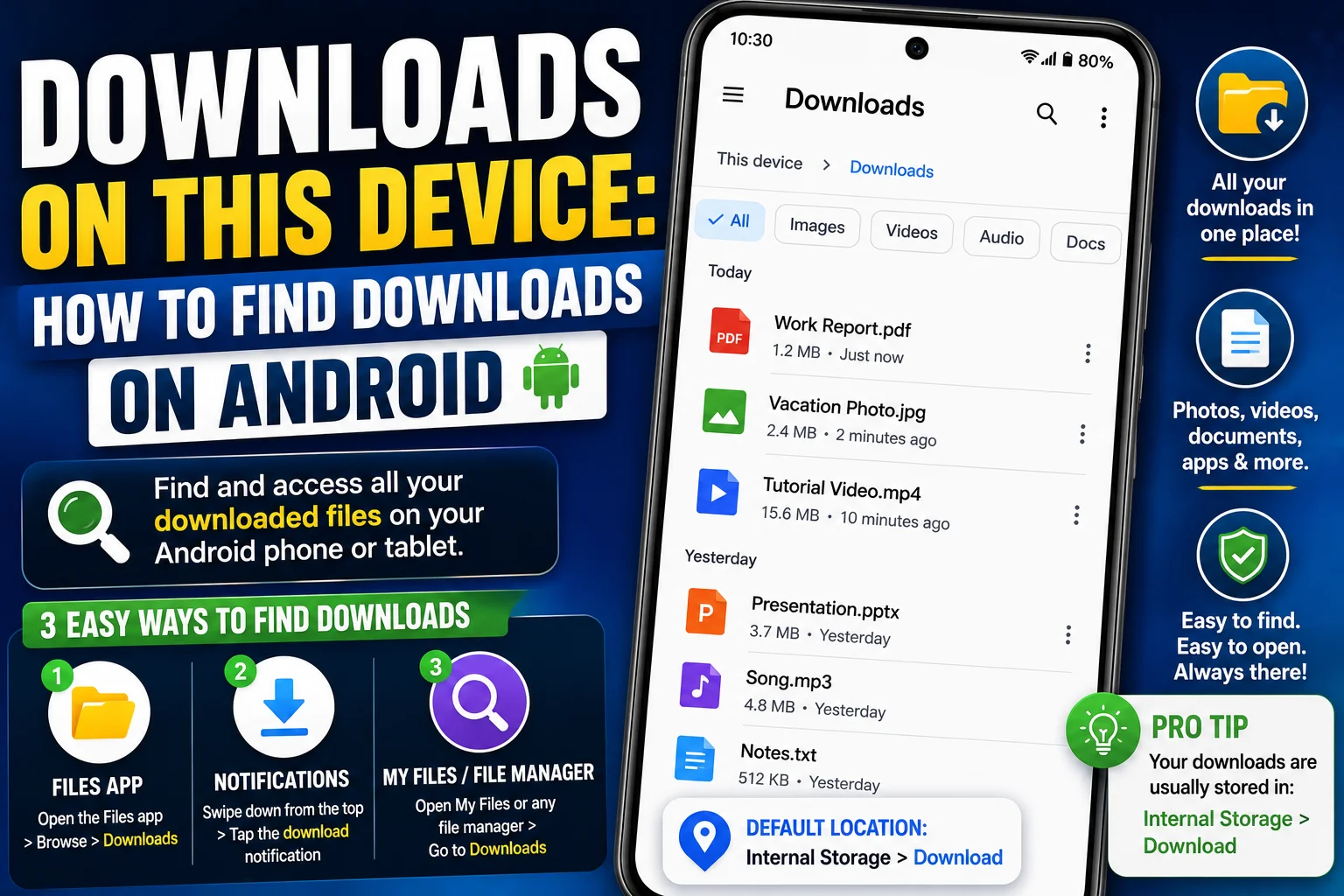
If you’re wondering where downloads on this device are stored, finding them on Android is usually simple. Whether you downloaded a PDF, image, document, video, or another file, Android typically saves it in a Downloads folder or makes it accessible through your phone’s file manager.
The exact steps can vary depending on your Android phone, browser, and operating system version. This guide explains where to look and what to do if you can’t find a downloaded file.
Read also; 231 Area Code: Location, Cities & What Area Code 231 Covers in Michigan
What Does “Downloads on This Device” Mean?
Downloads on this device generally refers to files that have been downloaded and saved directly to your phone or tablet.
Unlike files stored only online, downloaded files can usually be accessed without an internet connection, depending on the file and app you used.
Common downloaded files include:
- PDF documents
- Photos and images
- Videos
- Music and audio files
- Word documents
- ZIP files
- APK files
- Web pages and other documents
Android apps can sometimes save downloads in different folders, so the location isn’t always identical for every file.
Where Are Downloads on This Device Android?
On most Android phones, downloaded files can be found through the Files, My Files, or File Manager app.
Try these steps:
- Open your phone’s file manager.
- Look for Downloads or Download.
- Open the folder.
- Browse your recently downloaded files.
- Tap a file to open it with a compatible app.
The name of the file manager depends on the manufacturer. Some phones use Files, while others have a manufacturer-specific file-management app.
How to Find Downloads on Android
If you’re using downloads on this device Android, start with the following method.
Step 1: Open the Files App
Look through your apps for an application called Files, Files by Google, My Files, or File Manager.
Open it to access the folders stored on your device.
Step 2: Select Downloads
Look for a category or folder labeled Downloads.
Some file-management apps display categories such as Images, Videos, Documents, and Downloads on the main screen.
Step 3: Check Recent Files
If you downloaded something recently, check the Recent section. Your newest files may appear there even if you don’t know which folder they were saved in.
Step 4: Search for the File
If you know the file name, use the search function in your file manager.
For example, if you downloaded a PDF called guide.pdf, search for guide or .pdf.
How to Find Downloads in Chrome on Android
If you downloaded a file using Google Chrome, you can usually find it through Chrome’s download section.
Open Chrome and:
- Tap the three-dot menu.
- Select Downloads.
- Review your downloaded files.
- Tap a file to open it.
You can also use your phone’s file manager to locate the actual downloaded file.
The Chrome download list and the device’s Downloads folder are related, but the exact storage location can vary depending on your Android setup and Chrome settings.
How to Find Downloaded Images on Android
Downloaded images may appear in your file manager under Downloads, but some images may also appear in your Gallery or Photos app.
If you cannot find an image:
- Check the Downloads folder.
- Check your Gallery or Photos app.
- Search your file manager for the image name.
- Look in folders such as Pictures or Images.
- Check the app you used to download the image.
For example, an image downloaded from a browser may be saved in Downloads, while an image received through another app may be stored in that app’s own folder.
How to Find Downloaded PDFs on Android
PDF files are commonly saved in the Downloads folder.
Open your file manager and select Downloads. Look for files ending in:
You can also search for PDF or part of the document’s filename.
If you downloaded the PDF through an app, check that app’s download or document section as well.
What If I Can’t Find My Download?
If a downloaded file isn’t where you expect it to be, try these troubleshooting steps.
Check the Download History
Open the browser or app that you used to download the file and check its Downloads section.
This can show whether the download actually completed.
Check the Downloads Folder
Open your device’s file manager and manually check the Downloads folder.
Search the Device
Use the search feature in your file manager and enter part of the filename.
You can also search by file type, such as:
- .jpg
- .png
- .mp4
- .zip
Check Available Storage
A download may fail if your device doesn’t have enough free storage.
Go to your Android device’s storage settings and check how much space is available.
Download the File Again
If the original download failed or was removed, downloading the file again may solve the problem.
Where Do Downloads Go on Samsung Phones?
Samsung devices commonly include a My Files app.
To look for your downloads:
- Open My Files.
- Select Downloads.
- Browse your downloaded files.
You can also use the search feature to locate a specific file.
The exact layout may differ depending on your Samsung device and software version.
Where Do Downloads Go on Other Android Phones?
Different Android manufacturers may use different file-management apps and folder layouts.
You may see apps named:
- Files
- Files by Google
- My Files
- File Manager
- File Browser
Regardless of the app name, the Downloads folder is usually one of the first places to check.
How to Manage Downloads on This Device
Once you’ve found your downloaded files, you can usually perform several actions from the file manager.
Depending on the file type and Android version, you may be able to:
- Open files
- Share files
- Rename files
- Move files
- Copy files
- Delete files
- Sort files
- View file details
Deleting unnecessary downloads can help free up storage space.
Before deleting something, make sure you no longer need it or have another copy stored somewhere else.
Conclusion
Finding downloads on this device is usually as easy as opening your Android phone’s file manager and checking the Downloads folder. If the file isn’t there, check the browser or app you used to download it, search your device, and review your recent files.
Because Android devices and manufacturers can organize files differently, the exact steps may vary. Still, checking Downloads, Recent Files, and your app’s download history will usually help you locate the file you’re looking for.
Frequently Asked Questions
What are downloads on this device?
Downloads on this device are files that have been downloaded and stored locally on your Android phone or tablet.
Where can I find downloads on Android?
Open your phone’s file manager and look for the Downloads folder. You can also check the Recent section or search for the file by name.
Where are downloads on this device Android?
On many Android devices, downloads are stored in a folder called Download or Downloads in the phone’s internal storage.
Why can’t I find my downloaded file?
The file may have been saved in another folder, the download may not have completed, or the app you used may store downloads separately. Check the app’s download history and search your device.
Can I delete downloads from my Android phone?
Yes. You can normally delete downloaded files through your file manager. Make sure the files are no longer needed before deleting them.
Do downloads take up phone storage?
Yes. Files downloaded and stored locally use your device’s available storage space.