
QR codes have become a simple way to share websites, contact details, menus, social media profiles, event information, and other digital content. If you’re looking for an Adobe QR code generator, Adobe Express provides an easy way to create a QR code without needing advanced design or coding skills.
This guide explains how to use the Adobe Express QR code generator, what you can create with it, and how to make a QR code that is easy for people to scan.
Read also; Downloads on This Device: How to Find Downloads on Android
What Is an Adobe QR Code Generator?
An Adobe QR code generator is a tool that lets you create a QR code from information such as a website URL.
Adobe Express includes QR-code creation features that can be used to generate a code and incorporate it into a design. This can be useful when creating flyers, posters, business cards, menus, invitations, social media graphics, and other marketing materials.
A typical QR code contains a pattern of black-and-white or customized squares. When someone scans it with a compatible smartphone camera, the encoded information can be accessed.
What Is the QR Code Generator Adobe Express Tool?
The QR code generator Adobe Express workflow is designed to be straightforward.
You generally provide the URL you want the QR code to open, generate the code, and then use it in your design.
For example, you could create a QR code that directs users to:
- Your website
- An online store
- A registration page
- A restaurant menu
- A social media profile
- A digital portfolio
- A contact page
- An event information page
The QR code gives users a quick way to access the destination without manually typing a long web address.
How to Use the Adobe Express QR Code Generator
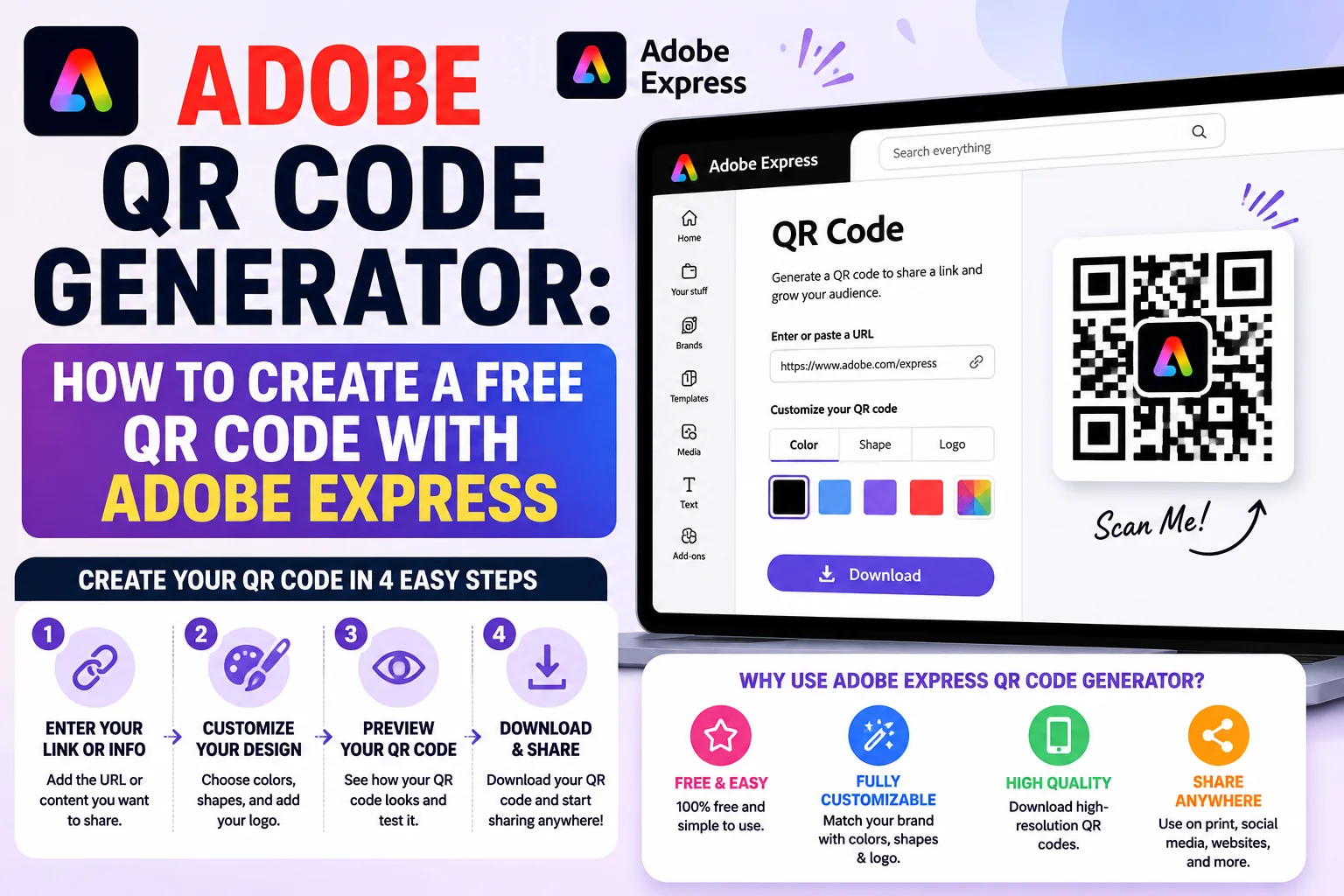
Creating a QR code with Adobe Express can be done in a few basic steps.
1. Open Adobe Express
Go to Adobe Express and open the QR code creation tool.
If you already use Adobe Express for designs, you can also create the QR code and incorporate it directly into a project.
2. Enter Your Website URL
Enter the web address you want the QR code to open.
Make sure the URL is correct before generating the code. A QR code can scan successfully but still send users to the wrong website if the original URL was entered incorrectly.
3. Generate the QR Code
Use the available option to generate the QR code.
The tool creates the QR pattern based on the information you entered.
4. Customize the QR Code
Depending on the available Adobe Express options, you may be able to adjust the QR code’s appearance.
Keep readability in mind when customizing it. A QR code that looks attractive but cannot be scanned reliably isn’t useful.
5. Download or Add It to Your Design
Once your QR code is ready, you can use it in your Adobe Express project or download it according to the available options.
You can then place it on printed or digital materials.
Is Adobe Express a Free QR Code Generator?
If you’re searching for an Adobe free QR code generator, Adobe Express offers QR-code creation as part of its design tools. Availability of specific features, formats, or editing options can change over time, so check Adobe Express for the current options associated with your account.
For a basic website QR code, the important thing is to make sure the destination URL is correct and the finished code remains easy to scan.
How to Make a QR Code That Works
Generating a QR code is only the first step. You should also test it before publishing.
Use a Clear Destination URL
Make sure the URL works correctly before creating the QR code.
Maintain Good Contrast
The QR pattern should have sufficient contrast against its background. Avoid designs that make the individual squares difficult to distinguish.
Don’t Make It Too Small
A QR code needs to be large enough for smartphone cameras to recognize it.
The appropriate size depends on the distance from which people will scan it. A code on a large poster generally needs to be larger than one printed on a business card.
Leave Enough Empty Space
QR codes require a clear area around the code, often called the quiet zone. Avoid placing text, graphics, or other elements too close to the edges.
Test Before Printing
Scan the QR code with multiple smartphones if possible. Test it from the expected scanning distance and under realistic lighting conditions.
Where Can You Use an Adobe QR Code?
An Adobe-generated QR code can be incorporated into many different types of projects.
Business Cards
Add a QR code that sends customers to your website, portfolio, contact page, or social profile.
Flyers and Posters
A QR code can provide quick access to registration forms, promotions, product pages, or additional information.
Restaurant Menus
Restaurants can use QR codes to direct customers to digital menus or ordering pages.
Event Invitations
Event organizers can link QR codes to registration pages, maps, schedules, or event details.
Product Packaging
Businesses can use QR codes to provide product instructions, support information, or additional resources.
Marketing Materials
QR codes can connect printed advertisements with online campaigns, landing pages, videos, or special offers.
Adobe QR Code Generator vs. Other QR Code Tools
There are many QR code generators available online. Adobe Express can be particularly useful if you’re already creating marketing or graphic-design materials with Adobe Express.
Instead of generating a QR code separately and then moving it into another design application, you can incorporate the code into a broader design workflow.
The best tool depends on what you need. If you only need a simple URL QR code, a basic generator may be sufficient. If you also need design capabilities, Adobe Express can be convenient.
Common Adobe QR Code Generator Mistakes
Avoid these common problems when creating a QR code:
- Entering the wrong URL
- Making the QR code too small
- Using insufficient color contrast
- Covering parts of the QR pattern with graphics
- Removing the clear space around the code
- Failing to test the final printed version
- Linking to a webpage that does not work well on mobile devices
A few minutes of testing can prevent customers or visitors from encountering problems.
Final Thoughts
The Adobe QR code generator can be a convenient option for creating a QR code and incorporating it into a larger design. With Adobe Express, you can create a code for a website or other online destination and use it in business cards, flyers, posters, menus, invitations, and marketing materials.
Before sharing or printing your QR code, always verify the URL, maintain good contrast and sizing, and test the finished code with a smartphone. These simple steps can help ensure that your QR code works reliably for the people who scan it.
Frequently Asked Questions
What is an Adobe QR code generator?
An Adobe QR code generator is a QR-code creation tool available through Adobe Express that can turn a URL into a scannable QR code.
How do I use the Adobe Express QR code generator?
Open Adobe Express’s QR-code tool, enter the destination URL, generate the QR code, customize it if needed, and add or download it for your project.
Is Adobe Express a free QR code generator?
Adobe Express provides QR-code generation features, including options available without requiring advanced design skills. Specific features and account requirements can change, so check the current Adobe Express offering before creating your project.
Can I customize an Adobe QR code?
Depending on the current Adobe Express features, you may be able to adjust aspects of the QR code’s appearance. Always test a customized QR code to make sure it remains scannable.
Can I put an Adobe QR code on a business card?
Yes. A QR code can be included on a business card to direct people to a website, contact page, portfolio, social profile, or another online destination.
Does a QR code expire?
A QR code itself does not necessarily expire. What matters is the destination it points to. If the URL stops working or the linked service changes, scanning the code may no longer provide the intended result.