

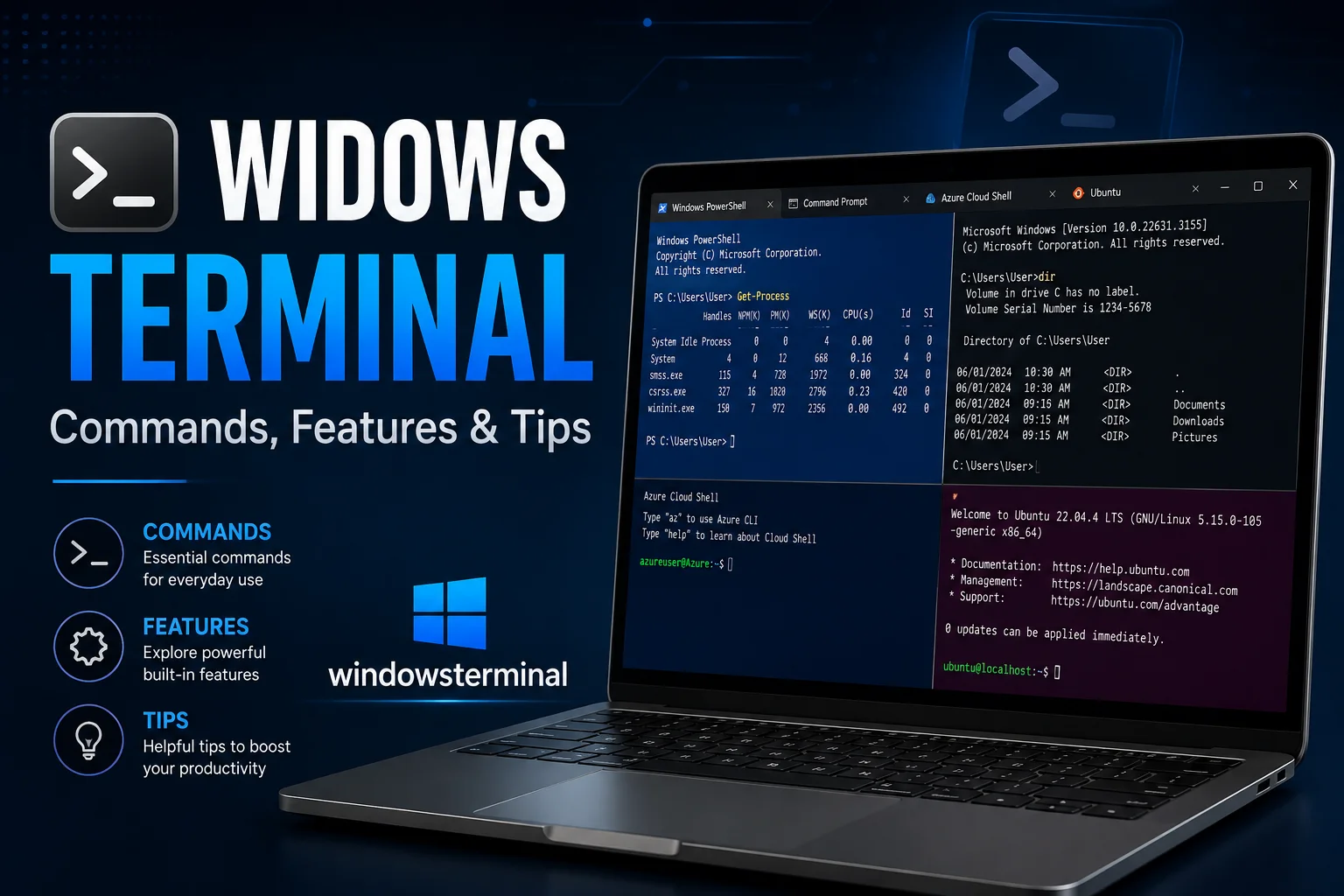
In the past, the command-line experience on Windows was often fragmented, utilitarian, and aesthetically dated. Developers and system administrators frequently found themselves jumping between different windows, dealing with limited font support, and struggling with basic customization. That changed significantly with the introduction of WindowsTerminal.
Microsoft developed this tool as a modern, fast, efficient, and powerful terminal emulator for users of command-line tools and shells like Command Prompt, PowerShell, and WSL (Windows Subsystem for Linux). Whether you are a seasoned software engineer or a power user looking to streamline your workflow, understanding how to leverage the full potential of this tool is essential. This article explores the core features, essential commands, and expert tips to help you master the environment.
Why WindowsTerminal Is a Game Changer
Unlike its predecessors, WindowsTerminal is built from the ground up to support modern computing requirements. It is an open-source project hosted on GitHub, which allows for community-driven innovation.
Key features that set it apart include:
- GPU Acceleration: It uses the hardware graphics card to render text, resulting in a much smoother experience, especially when dealing with high-density character sets or large amounts of output.
- Unicode and UTF-8 Support: It supports virtually any character set, including emojis and complex symbols, making it perfect for modern development workflows.
- Tabs and Panes: You can run multiple instances of various shells in a single window, organizing them through tabs or splitting them into side-by-side panes.
- Deep Customization: Through a JSON-based configuration file, users can modify themes, keybindings, and profiles to fit their specific aesthetic and functional needs.
Getting Started: Essential Commands and Navigation
To get the most out of your experience, you should familiarize yourself with the keyboard shortcuts that turn a standard terminal session into a high-speed productivity environment.
Managing Tabs and Panes
- Ctrl + Shift + T: Open a new tab.
- Ctrl + Shift + W: Close the current tab.
- Alt + Shift + D: Split the current pane horizontally/vertically.
- Alt + Arrow Keys: Navigate between open panes.
- Ctrl + Shift + Tab: Cycle through your open tabs.
Searching and Editing
- Ctrl + Shift + F: Open the search dialog to find specific outputs within your current terminal history.
- Ctrl + Shift + C / V: Copy and paste functionality, which now respects standard Windows conventions while remaining compatible with Linux-style workflows.
For those interested in exploring the source code or contributing to the project, you can visit the official Windows Terminal GitHub repository.
Also Read: RightNewsletter | Latest Stories & Headlines
Customizing Your Workflow
One of the most powerful aspects of WindowsTerminal is its flexibility. By clicking the dropdown menu and selecting “Settings,” you open a JSON file that acts as the brain of your terminal.
Profile Management
You can define custom profiles for different environments. For example, you can create a specific profile for a development environment that automatically launches a virtual environment or connects to a remote server. You can also assign unique background images, transparency effects, and color schemes to each profile, making it visually obvious which environment you are currently working in.
The Power of Keybindings
If you are a fan of Vim or Emacs, you can remap your keys to match your muscle memory. Within the actions array in your configuration file, you can bind virtually any command to a keyboard shortcut, allowing you to manipulate your terminal window without ever touching the mouse.
Expert Tips for Power Users
- Cascadia Code: Ensure you are using the Cascadia Code font, which was designed by Microsoft specifically for this terminal. It includes programming ligatures that make code much more readable.
- Startup Directory: Configure your profiles to open in specific directories by default to save time when starting a new project.
- Command Palette: Press Ctrl + Shift + P to open the command palette. This is a life-saver for finding features or settings without needing to memorize every single shortcut.
- Integrated Search: When working with long logs, don’t waste time scrolling. Use the search feature to highlight all occurrences of a specific variable or error code.
Conclusion
WindowsTerminal has successfully redefined what it means to work within the Windows command-line environment. By bridging the gap between legacy tools and modern design requirements, it provides a unified, highly customizable, and performant platform for developers and IT professionals alike.
By mastering the shortcuts, customizing your profiles, and utilizing the advanced configuration options, you can significantly reduce the friction in your daily coding or administrative tasks. Whether you are managing complex cloud infrastructure via PowerShell or compiling local projects in a Linux environment, this tool offers the stability and speed required for professional work. Embracing these features will not only make your terminal look better but will undoubtedly make you a more efficient and capable power user. Take the time to tweak your setup today, and experience the difference a truly modern terminal makes.