
Screen mirroring is a convenient way to display your iPhone screen on a TV, Mac, or another compatible device. Whether you want to watch videos, show photos, or share something from your phone, AirPlay can make it easy.
However, sometimes screen mirroring iPhone not working problems can appear without warning. Your TV may not show up, the connection may fail, or the screen may disconnect after a few seconds.
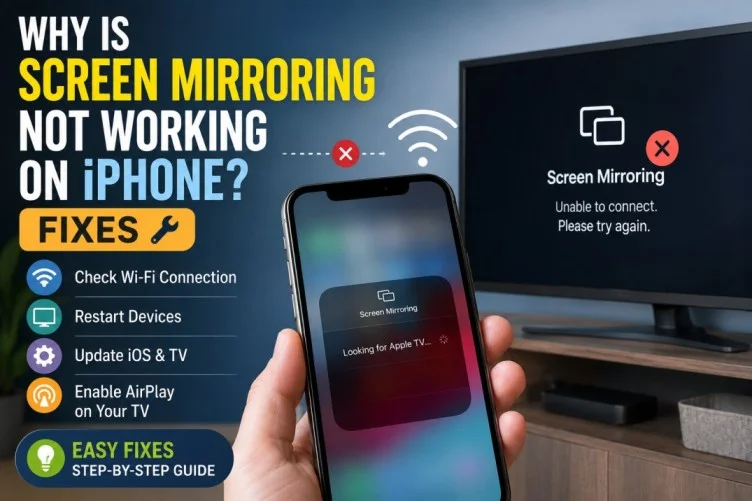
If you’re wondering, why is my screen mirroring not working on my iPhone, the problem is often related to Wi-Fi, device compatibility, settings, or software. Here are some practical fixes to try.
Check Your Wi-Fi Connection
The first thing to check is your Wi-Fi connection. Your iPhone and the device you’re trying to mirror to generally need to be connected to the same Wi-Fi network.
Open Wi-Fi settings on your iPhone and check the connected network. Then check the TV, Mac, or other receiving device and make sure it is using the same network.
If one device is connected to a guest network or a different router, screen mirroring may not work.
Make Sure AirPlay Is Supported
Screen mirroring through AirPlay requires a compatible receiving device.
If you’re using a smart TV, check whether it supports AirPlay. Some TVs also require AirPlay to be enabled in their settings.
If your TV does not support AirPlay, you may need a compatible Apple TV or another supported solution.
Restart Both Devices
A simple restart can fix temporary connection problems.
Restart your iPhone and the TV or other receiving device. After both devices restart, connect them to the same Wi-Fi network and try screen mirroring again.
This can clear temporary software or network issues that may be preventing the connection.
Turn Wi-Fi Off and On
If screen mirroring is not working on iPhone, refreshing the wireless connection can sometimes help.
Go to Settings > Wi-Fi, turn Wi-Fi off, wait a few seconds, and turn it back on. Reconnect to your network and try AirPlay again.
You can also restart your router if other devices are experiencing connection problems.
Check AirPlay Settings
If the receiving device does not appear when you try to mirror your iPhone, check its AirPlay settings.
On a compatible TV, look for AirPlay or Apple AirPlay settings and make sure the feature is enabled.
If you’re using an Apple TV, check its AirPlay settings and make sure your iPhone is allowed to connect.
The exact menu names can vary depending on the device and software version.
Update Your iPhone
Outdated software can sometimes cause compatibility problems.
Open Settings > General > Software Update and check whether a new iOS update is available.
You should also check whether your TV, Apple TV, or Mac has available software updates. Keeping both devices updated can help resolve bugs and improve compatibility.
Disable VPN Temporarily
A VPN can sometimes interfere with local network connections.
If you use a VPN on your iPhone, temporarily disconnect it and try screen mirroring again.
If mirroring works after disabling the VPN, the VPN or its network configuration may have been interfering with the connection.
Check Your TV’s Input and Settings
If you’re mirroring to a TV, make sure the TV is turned on and set to the correct input.
For wireless AirPlay, you generally do not need to switch to an HDMI input. However, some TVs have separate settings that control AirPlay or wireless connections.
Check your TV’s network and AirPlay settings if the iPhone cannot detect it.
Try Screen Mirroring Again
Once you’ve checked your connection and settings, open Control Center on your iPhone.
Depending on your iPhone model, swipe down from the upper-right corner of the screen. Tap Screen Mirroring and select your TV or compatible device.
If a code appears on the receiving device, enter it on your iPhone.
If the device appears but the connection fails, restart both devices and try again.
Reset Network Settings
If nothing else works, you can reset your iPhone’s network settings.
Go to Settings > General > Transfer or Reset iPhone > Reset > Reset Network Settings.
Keep in mind that this removes saved Wi-Fi networks, passwords, VPN settings, and other network-related information. You will need to reconnect to Wi-Fi afterward.
Only use this step after trying the simpler solutions.
Why Is My Screen Mirroring Not Working on My iPhone?
If you’re still asking why is my screen mirroring not working on my iPhone, there may be a compatibility or network issue.
Common causes include:
- iPhone and TV using different Wi-Fi networks
- AirPlay being disabled
- An incompatible TV or device
- Outdated software
- Temporary network problems
- VPN interference
- Router issues
- Device-specific AirPlay restrictions
Checking these areas should help identify the source of the problem.
Read Also : Is CoinSnap App Legit? CoinSnap App Review & Safety Guide
Final Thoughts
When screen mirroring is not working on iPhone, start with the basics: check that both devices are on the same Wi-Fi network, confirm AirPlay compatibility, and restart your devices.If the problem continues, update your software, check AirPlay settings, temporarily disable a VPN, and consider resetting network settings as a last resort.
Most screen mirroring problems can be resolved by fixing the network connection or adjusting a device setting.
Frequently Asked Questions
Why can’t my iPhone find my TV for screen mirroring?
Make sure your iPhone and TV are connected to the same Wi-Fi network and that the TV supports and has AirPlay enabled.
Why does screen mirroring connect but then disconnect?
A weak Wi-Fi connection, network interference, outdated software, or a temporary device problem can cause the connection to drop.
Does screen mirroring work without Wi-Fi?
Standard AirPlay screen mirroring generally requires a compatible network connection. Some specific Apple devices and configurations support peer-to-peer AirPlay, but compatibility varies.
Will resetting network settings fix screen mirroring?
It can help if the problem is caused by corrupted or incorrect network settings. Remember that it also removes saved Wi-Fi passwords and network configurations.
Why is my screen mirroring still not working after restarting?
If restarting does not help, check device compatibility, AirPlay settings, software updates, Wi-Fi configuration, and any VPN or network restrictions.