
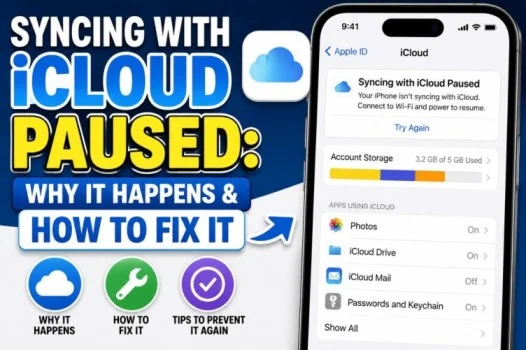
If you see the message “Syncing with iCloud Paused” on your iPhone, it usually means your device has temporarily stopped uploading or updating information with iCloud. This can happen with Messages, Photos, Contacts, Notes, and other iCloud data.
A paused sync does not always mean something is wrong. Your iPhone may pause syncing because of low battery, poor internet connectivity, low iCloud storage, or settings that affect background syncing.
If you are seeing “syncing with iCloud paused iMessage” or “messages syncing with iCloud paused,” there are several things you can check.
Read also; iPhone 17 Charger: Type, USB-C, Pro Max & What’s Included
What Does “Syncing With iCloud Paused” Mean?
“Syncing with iCloud paused” means your iPhone has temporarily stopped syncing selected information with your iCloud account.
iCloud sync allows information to stay updated across your Apple devices. For example, when Messages in iCloud is enabled, your conversations can stay synchronized between supported devices signed in to the same Apple Account.
When syncing is paused, new information may not immediately appear on your other devices.
The good news is that a paused sync is often temporary.
Why Is Syncing With iCloud Paused?
There are several possible reasons why syncing with iCloud paused appears on your iPhone.
Common causes include:
- Low battery
- Low Power Mode
- Weak or unavailable Wi-Fi
- Mobile data restrictions
- Low iCloud storage
- Temporary iCloud connection problems
- Your iPhone needs charging
- Software issues
- iCloud settings that need attention
Your iPhone may pause certain background activities to save battery or reduce data usage.
Syncing With iCloud Paused iMessage
If you specifically see a message about iMessage or Messages syncing with iCloud paused, your conversations may temporarily stop synchronizing.
Messages in iCloud is designed to keep your messages updated across Apple devices that use the same Apple Account.
For example, if you send a message from your iPhone, the conversation can be synchronized with other supported Apple devices.
If syncing is paused, the latest messages may not immediately appear everywhere.
Messages Syncing With iCloud Paused: What to Do
If messages syncing with iCloud paused appears on your device, start with the simplest solutions.
1. Connect Your iPhone to Wi-Fi
A stable internet connection can help iCloud synchronization continue.
Open your Wi-Fi settings and connect to a reliable network.
Then leave your iPhone connected for a while and check whether the syncing message disappears.
2. Plug Your iPhone Into Power
If your battery is low, iCloud syncing may be temporarily paused.
Connect your iPhone to a charger and leave it connected.
After the battery has charged, check whether syncing resumes.
3. Turn Off Low Power Mode
Low Power Mode reduces background activity to extend battery life.
If syncing is paused, check whether Low Power Mode is enabled.
Go to:
Settings → Battery
If Low Power Mode is turned on, consider turning it off temporarily and allowing your iPhone to sync.
4. Check Your iCloud Storage
Another possible reason is that your iCloud storage is full.
To check your storage, open:
Settings → Your Name → iCloud
Review the available storage.
If there is little or no space remaining, you may need to delete unnecessary iCloud data or upgrade your storage plan.
Check Your Messages in iCloud Settings
If the problem specifically affects messages, check your Messages settings.
Open:
Settings → Your Name → iCloud → Messages
Make sure the option to sync Messages with iCloud is enabled.
The exact wording and menu layout can vary depending on your iOS version.
If Messages in iCloud is already enabled, avoid repeatedly switching the setting on and off. Give the device time to complete its synchronization.
Restart Your iPhone
A simple restart can resolve temporary software or connection problems.
To restart your iPhone:
- Press and hold the appropriate side and volume buttons.
- Use the power-off slider.
- Wait for the iPhone to turn off.
- Turn it back on.
- Connect to Wi-Fi.
- Check iCloud syncing again.
After restarting, allow some time for background synchronization to resume.
Update Your iPhone
An outdated version of iOS can sometimes cause unexpected behavior.
Check for available updates by going to:
Settings → General → Software Update
If an update is available, review the information and install it when convenient.
Keep your iPhone connected to power and a reliable Wi-Fi network during the update if required.
Check Your Internet Connection
If your Wi-Fi connection is unstable, iCloud synchronization may have trouble completing.
Try opening a website or another online service to confirm that your connection works.
You can also try:
- Moving closer to your router
- Restarting your router
- Switching to another Wi-Fi network
- Checking whether other devices have internet access
If your internet connection is working normally, give iCloud some time to resume synchronization.
Check Apple’s System Status
Sometimes the problem is not caused by your iPhone.
Apple’s online services can occasionally experience temporary interruptions or maintenance.
If iCloud services are experiencing an outage, your device may not be able to synchronize information normally.
In that situation, waiting until the service is restored may be necessary.
Don’t Immediately Sign Out of iCloud
If syncing with iCloud paused appears, you generally shouldn’t immediately sign out of your Apple Account.
Signing out can affect how information is stored and synchronized on your device.
Try simpler solutions first, such as charging your iPhone, connecting to Wi-Fi, checking storage, and restarting the device.
How Long Does iCloud Sync Take?
There is no single sync time that applies to every iPhone.
The time can depend on:
- Amount of data
- Internet speed
- Available iCloud storage
- Battery level
- Number of devices
- Type of content being synchronized
- Apple’s service availability
A small amount of data may sync quickly, while a large library of photos or messages can take longer.
Does “Syncing With iCloud Paused” Mean My Messages Are Lost?
Usually, no.
A paused synchronization message does not automatically mean that your messages have been deleted.
It generally means synchronization has temporarily stopped.
If the messages are still visible on your iPhone, avoid deleting conversations or changing multiple iCloud settings while troubleshooting.
Give the device time to reconnect and resume synchronization.
When Should You Be Concerned?
A temporary pause is usually not a major problem.
However, you may want to investigate further if:
- Syncing remains paused for a long time
- Messages never appear on another device
- iCloud storage is full
- You repeatedly receive the same error
- Your internet connection works but syncing never resumes
- Other iCloud services are also failing
In these situations, checking Apple’s support resources or contacting Apple Support may be appropriate.
Final Thoughts
Seeing “Syncing with iCloud paused” on an iPhone can be confusing, especially when it appears alongside messages or iMessage.
In many cases, the problem is temporary. Connecting your iPhone to Wi-Fi and power is a good first step. You should also check Low Power Mode, iCloud storage, Messages in iCloud settings, your internet connection, and available iOS updates.
If messages syncing with iCloud paused continues for an extended period, check Apple’s system status and consider contacting Apple Support. Avoid deleting messages or repeatedly changing iCloud settings while troubleshooting, especially if you are unsure whether your latest data has synchronized.
Frequently Asked Questions
Why is syncing with iCloud paused?
Syncing can pause because of low battery, Low Power Mode, poor internet connectivity, insufficient iCloud storage, or temporary service issues.
How do I fix syncing with iCloud paused?
Start by connecting your iPhone to Wi-Fi and power. Then check iCloud storage, review your Messages settings, restart your iPhone, and make sure iOS is up to date.
Why does syncing with iCloud paused appear for iMessage?
If Messages in iCloud is enabled, your iPhone may temporarily pause message synchronization because of battery, network, storage, or other system conditions.
Are my messages deleted when iCloud syncing is paused?
A paused sync does not normally mean that your messages have been deleted. It generally means that synchronization is temporarily stopped.
How do I resume Messages syncing with iCloud?
Connect your iPhone to a reliable Wi-Fi network and power source. Check your iCloud storage and make sure Messages in iCloud is enabled. Then give the device time to synchronize.
Does Low Power Mode pause iCloud syncing?
Low Power Mode reduces certain background activities. Depending on the task, this can affect how quickly some information synchronizes.