

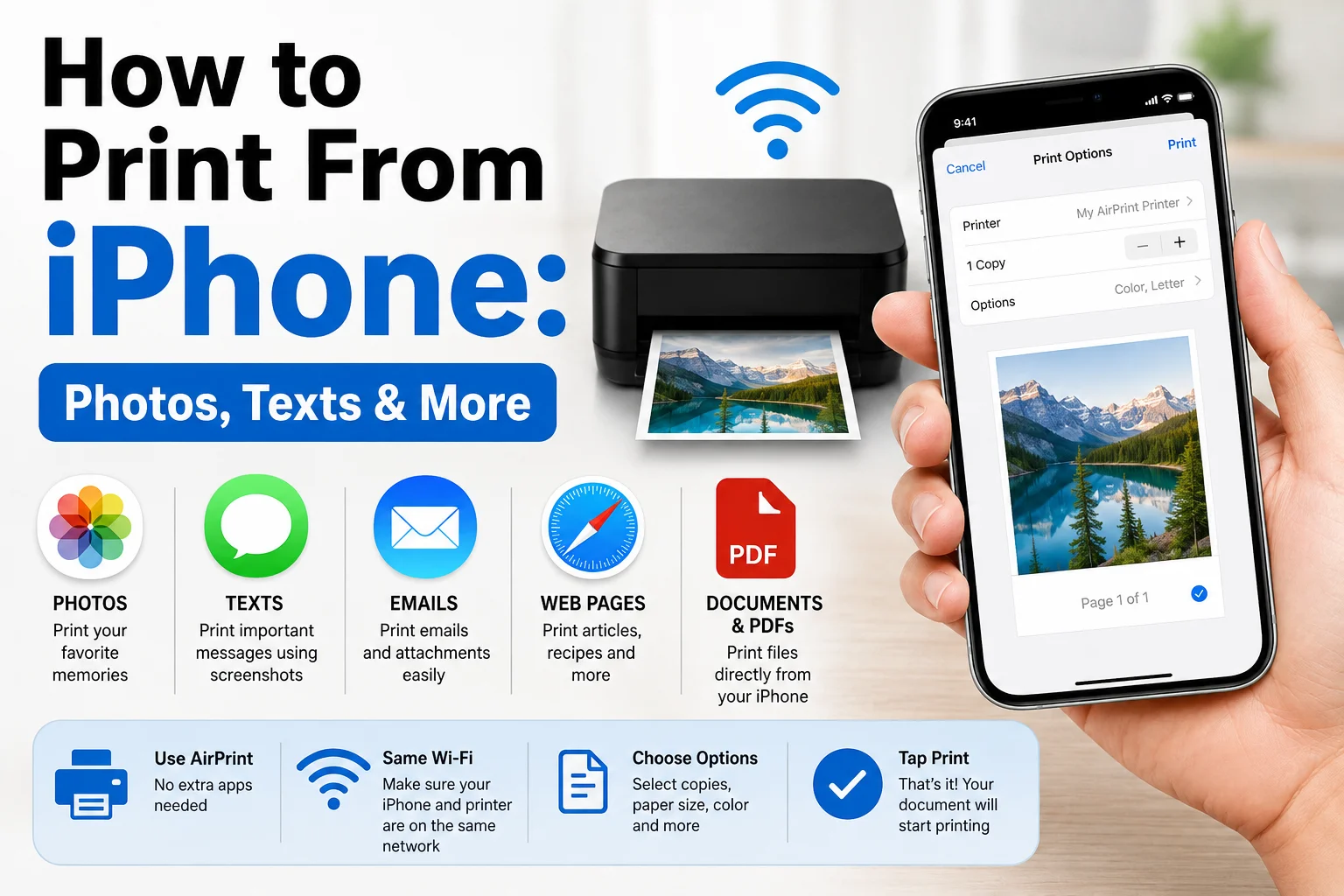
Learning how to print from iPhone is simple when you have a compatible wireless printer. Apple’s built-in AirPrint feature lets you print photos, documents, emails, webpages, and other content directly from many iPhone apps without installing additional printer software.
You generally need an AirPrint-compatible printer and an iPhone connected to the same Wi-Fi network. In this guide, we’ll explain how to print photos from iPhone, text messages, documents, emails, and webpages, plus what to do if your printer isn’t detected.
Read also; CTFU Meaning: What Does CTFU Mean in Text & Slang?
How to Print From iPhone
The easiest way to print from an iPhone is with AirPrint.
Before you start:
- Make sure your printer supports AirPrint.
- Turn on the printer.
- Connect your iPhone and printer to the same Wi-Fi network.
- Open the app or file you want to print.
- Tap the Share button or More button.
- Select Print.
- Choose your printer.
- Select the number of copies and other available options.
- Tap Print.
The exact buttons can vary between apps.
How to Print Photos From iPhone
If you want to know how to print photos from iPhone, you can usually do it directly through the Photos app.
Steps to Print an iPhone Photo
- Open the Photos app.
- Select the photo you want to print.
- Tap the Share button.
- Scroll through the sharing options and select Print.
- Tap Select Printer.
- Choose your AirPrint-compatible printer.
- Select the number of copies.
- Adjust available print options, such as paper size or color.
- Tap Print.
For multiple photos, select the photos first and then use the Share menu.
Tips for Better Photo Prints
Before printing, check:
- Photo resolution
- Paper size
- Paper type
- Orientation
- Color settings
- Printer ink or toner
For high-quality images, use photo paper supported by your printer.
How to Print Text Messages From iPhone
There isn’t usually a simple Print button inside every Messages conversation. If you want to know how to print text messages from iPhone, you may need to create a printable copy first.
One simple method is to take screenshots of the conversation.
Method 1: Use Screenshots
- Open the Messages app.
- Open the conversation.
- Scroll to the messages you want to preserve.
- Take screenshots.
- Open the screenshots in Photos.
- Select the screenshots.
- Tap Share.
- Select Print.
- Choose your printer.
- Tap Print.
This works well for short conversations.
Method 2: Copy Messages Into a Document
For a longer conversation, you can copy relevant text and place it into a document or note.
You can then print the document using AirPrint or another printing method.
This approach can be easier to organize if you need multiple pages.
Important Consideration
If you need printed messages for an official, legal, insurance, or business purpose, screenshots may not always provide enough context. Keep the original conversation and consider preserving relevant dates, contact information, and surrounding messages.
How to Print Documents From iPhone
You can also print documents stored on your iPhone.
Depending on the app you’re using:
- Open the document.
- Tap Share.
- Look for Print.
- Select your printer.
- Choose the desired settings.
- Tap Print.
Documents may include PDFs, Word files, spreadsheets, and other supported file types.
How to Print an Email From iPhone
Many email apps provide a printing option through the Share or More menu.
For example:
- Open the email.
- Tap the Reply/More menu or Share option, depending on the app.
- Select Print if available.
- Select your printer.
- Choose your settings.
- Tap Print.
If the email app doesn’t provide a direct printing option, you can sometimes save the email as a PDF and print the PDF instead.
How to Print a Webpage From iPhone
You can also print webpages from supported browsers.
In Safari:
- Open the webpage.
- Tap the Share button.
- Select Print.
- Choose your printer.
- Select your preferred settings.
- Tap Print.
Some webpages may not print exactly as they appear on your screen because websites can use different layouts for printing.
How to Print From iPhone Without AirPrint
If your printer doesn’t support AirPrint, you may still be able to print from an iPhone.
Possible alternatives include:
Use the Printer Manufacturer’s App
Many printer manufacturers provide iPhone apps that can communicate with compatible printers.
Depending on the brand, the app may allow you to:
- Find the printer
- Print photos
- Print documents
- Scan documents
- Manage printer settings
- Check ink levels
Install the official app for your printer model and follow its setup instructions.
Use a Computer
Another option is to transfer the file or photo from your iPhone to a Mac or Windows PC and print from the computer.
This can be useful when:
- Your printer isn’t wireless
- Your printer doesn’t support AirPrint
- The iPhone app doesn’t support printing
- You need advanced printing controls
How to Connect iPhone to a Printer
For AirPrint, you generally don’t need to pair your iPhone with the printer through Bluetooth.
Instead, both devices should normally be connected to the same Wi-Fi network.
If your printer isn’t appearing:
- Check the printer’s Wi-Fi connection.
- Confirm the iPhone is connected to Wi-Fi.
- Make sure both devices are using the same network.
- Restart the printer.
- Restart the iPhone.
- Check whether the printer supports AirPrint.
- Check for network or printer firmware issues.
Why Is My iPhone Not Finding My Printer?
If your iPhone doesn’t find the printer, there are several possible causes.
Printer Isn’t AirPrint Compatible
Check whether your printer model supports AirPrint.
Different Wi-Fi Networks
Your iPhone and printer may be connected to different networks.
For example, your iPhone might be using a guest Wi-Fi network while the printer is connected to the main network.
Printer Is Offline
Check the printer’s display or indicator lights. Make sure it has paper and isn’t showing an error.
Wi-Fi Connection Problem
Restarting your router, printer, and iPhone can sometimes resolve temporary network issues.
App Doesn’t Support Printing
Not every iPhone app includes a Print option. Try using the Share menu or saving the content as a PDF first.
How to Print Multiple Photos From iPhone
Printing several photos at once can save time.
- Open Photos.
- Tap Select.
- Choose the photos.
- Tap Share.
- Select Print.
- Choose your printer.
- Adjust the available settings.
- Tap Print.
The exact layout and number of photos per page can depend on the printer and available printing options.
Can You Print From iPhone Using Bluetooth?
AirPrint generally uses a network connection rather than standard Bluetooth printing.
Some printer manufacturers offer their own apps and connection methods, however. If your printer specifically supports Bluetooth printing, check the manufacturer’s instructions for your model.
Can You Print From iPhone to a USB Printer?
A traditional USB-only printer usually isn’t as straightforward to use directly with an iPhone as a wireless AirPrint printer.
If the printer doesn’t support AirPrint or another iPhone-compatible connection method, using a computer connected to the printer is often easier.
Conclusion
Learning how to print from iPhone is straightforward when you have an AirPrint-compatible printer. You can print photos, documents, emails, webpages, and other supported content directly from your phone.
For how to print photos from iPhone, the Photos app and Share menu are usually the easiest option. For how to print text messages from iPhone, screenshots or a document containing the messages can provide a printable copy.
If your printer doesn’t appear, first check the Wi-Fi connection, printer status, and AirPrint compatibility. If AirPrint isn’t available, your printer manufacturer’s official iPhone app may provide another way to print.
Frequently Asked Questions
How do I print from iPhone?
Open the content you want to print, tap Share or the appropriate menu, select Print, choose an available printer, adjust the settings, and tap Print.
How do I print photos from iPhone?
Open Photos, select one or more photos, tap Share, choose Print, select your printer, and tap Print.
How do I print text messages from iPhone?
You can take screenshots of the Messages conversation and print the screenshots. For longer conversations, you can copy relevant messages into a document and print the document.
Can I print from iPhone without Wi-Fi?
It depends on the printer. AirPrint generally requires a compatible network connection, while some printer manufacturers offer alternative connection methods.
Why can’t my iPhone find my printer?
Check that the printer is turned on, connected to the same Wi-Fi network as your iPhone, and compatible with AirPrint or the printing method you’re using.
Does every printer work with iPhone?
No. For the simplest experience, use a printer that supports AirPrint. Otherwise, check whether the manufacturer provides an iPhone-compatible printing app.
Can I print a PDF from my iPhone?
Yes. Open the PDF in a compatible app, use the Share or More menu, select Print, choose your printer, and start the print job.
Can I print an email from my iPhone?
Yes. Many email apps offer a Print option. If it isn’t available, you may be able to save the email as a PDF and print it.