

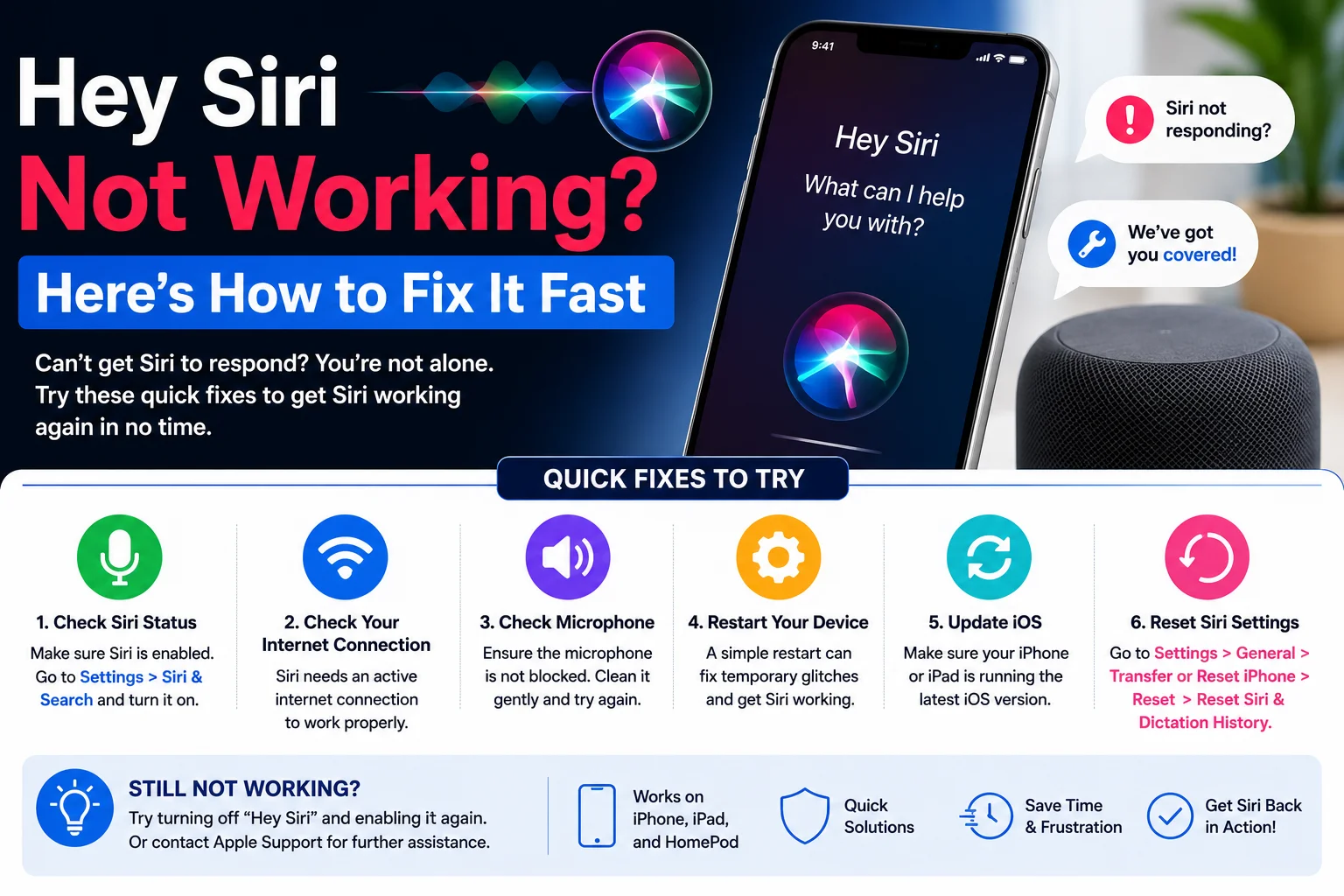
If Hey Siri isn’t responding on your iPhone, iPad, Mac, or other Apple device, you’re not alone. Many users occasionally experience issues where Siri doesn’t activate, recognize voice commands, or respond after saying “Hey Siri.” Fortunately, most of these problems can be fixed with a few simple troubleshooting steps.
In this guide, you’ll learn why Hey Siri is not working, how to enable it, and the best ways to get Apple’s voice assistant working again.
Read also; How to Reset AirPods: Step-by-Step Guide for All Models
What Is Hey Siri?
Hey Siri is Apple’s voice activation feature that lets you control your device using voice commands without pressing any buttons. Once enabled, you can ask Siri to:
- Make phone calls
- Send text messages
- Set reminders
- Check the weather
- Play music
- Open apps
- Answer questions
- Control compatible smart home devices
The feature is available on most modern Apple devices, including iPhones, iPads, Apple Watches, Macs, HomePods, and supported AirPods.
Why Is Hey Siri Not Working?
Several reasons can prevent Hey Siri from responding.
Siri Is Disabled
One of the most common causes is that Siri or the “Listen for ‘Hey Siri'” option has been turned off.
Internet Connection Problems
Although some Siri requests can work offline on supported devices, many features require an internet connection. Check that your device is connected to Wi-Fi or mobile data.
Low Power Mode Is Enabled
On some devices, Low Power Mode may affect background features. Disabling it may help restore Siri functionality.
Microphone Issues
If your microphone is blocked by dirt, dust, or a phone case, Siri may not hear your voice clearly.
Software Bugs
Temporary software glitches can stop Siri from working correctly. Restarting your device often resolves these issues.
How to Fix Hey Siri Not Working
Try these solutions one by one until Siri starts working again.
1. Enable Hey Siri
To make sure the feature is turned on:
- Open Settings.
- Tap Siri or Apple Intelligence & Siri (depending on your iOS version).
- Enable Listen for “Hey Siri.”
- Follow the on-screen instructions to train Siri to recognize your voice.
2. Restart Your Device
A simple restart can fix temporary software problems.
- Turn your device off.
- Wait about 30 seconds.
- Turn it back on.
- Try saying “Hey Siri” again.
3. Check Your Internet Connection
Open a website or app to confirm your internet connection is working properly.
If necessary:
- Switch between Wi-Fi and mobile data.
- Restart your Wi-Fi router.
- Turn Airplane Mode on and off.
4. Update iOS or macOS
Apple frequently fixes Siri-related bugs through software updates.
To check for updates:
- Open Settings.
- Tap General.
- Select Software Update.
- Install any available updates.
5. Retrain Siri
If Siri doesn’t recognize your voice:
- Turn Listen for “Hey Siri” off.
- Restart your device.
- Turn the feature back on.
- Complete the voice setup again.
6. Check Your Microphone
Test your microphone using the Voice Memos app.
If your voice sounds unclear:
- Remove your phone case.
- Clean the microphone openings carefully.
- Avoid covering the microphone while speaking.
7. Reset All Settings
If nothing else works:
- Open Settings.
- Tap General.
- Select Transfer or Reset iPhone.
- Tap Reset.
- Choose Reset All Settings.
This resets system settings without deleting your photos, apps, or personal files.
Devices That Support Hey Siri
The Hey Siri feature is available on many Apple products, including:
- iPhone
- iPad
- Apple Watch
- Mac
- HomePod
- AirPods (supported models)
- CarPlay
Support may vary depending on the device model and software version.
Tips to Improve Siri Performance
To get the best experience:
- Keep your device updated.
- Speak clearly when saying “Hey Siri.”
- Avoid loud background noise.
- Maintain a stable internet connection.
- Keep your microphones clean.
- Complete Siri voice training in a quiet environment.
Conclusion
If Hey Siri isn’t working, the problem is usually easy to fix. Checking your Siri settings, restarting your device, updating your software, and ensuring your microphone works properly can resolve most issues. By following the steps in this guide, you can quickly restore Siri and continue using voice commands for calls, messages, reminders, navigation, and much more.
Frequently Asked Questions (FAQs)
Why is Hey Siri not working?
The issue may be caused by disabled Siri settings, poor internet connectivity, microphone problems, outdated software, or temporary system glitches.
How do I turn on Hey Siri?
Go to Settings > Siri (or Apple Intelligence & Siri) and enable Listen for “Hey Siri.” Follow the setup instructions to train Siri to recognize your voice.
Does Hey Siri require the internet?
Many Siri features require an internet connection, although some newer Apple devices support limited offline requests.
Can I use Hey Siri with AirPods?
Yes. Supported AirPods models allow you to activate Siri hands-free when paired with a compatible Apple device.
Why doesn’t Siri recognize my voice?
You may need to retrain Siri, clean your device’s microphone, or reduce background noise.
Will updating my iPhone fix Siri problems?
In many cases, yes. Software updates often include bug fixes and performance improvements that resolve Siri-related issues.