

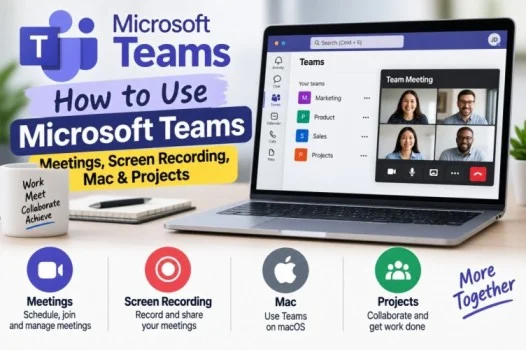
Microsoft Teams is a communication and collaboration platform from Microsoft. It lets you chat with coworkers, join meetings, share files, and work together on projects.
If you are new to Teams, the many features can seem confusing at first. However, the basic tools are easy to learn.
This guide explains how to use Microsoft Teams for meetings, screen recording, Mac, and project management.
Read also; White Square: Meaning, White House Size, Flag & Twitter Explained
What Is Microsoft Teams?
Microsoft Teams is designed for communication and teamwork.
You can use it to:
- Send messages
- Make video calls
- Join meetings
- Share files
- Create teams and channels
- Work on documents
- Manage project conversations
Teams works on Windows, Mac, mobile devices, and through a web browser.
How to Use Microsoft Teams
First, sign in with your Microsoft account or the account provided by your organization.
After signing in, you will see the main Teams interface. The exact layout can vary depending on your version and account.
Common areas include:
- Chat
- Teams
- Calendar
- Calls
- Activity
- Files
To start a chat, select Chat and choose New message. Then, enter the name or email address of the person you want to contact.
You can also create group chats for multiple people.
How to Join a Microsoft Teams Meeting
Teams makes it easy to join online meetings.
If someone sends you a meeting invitation, open the invitation and select the meeting link.
You can then choose your microphone and camera settings before joining.
During a meeting, you can:
- Turn your camera on or off
- Mute your microphone
- Use chat
- Share your screen
- Raise your hand
- Leave the meeting
The available features can depend on your account and meeting settings.
How to Start a Microsoft Teams Meeting
You can start a meeting from Teams in several ways.
For example, open Calendar and select New meeting. Add the people you want to invite, choose a date and time, and send the invitation.
You can also start an instant meeting from supported areas of Teams.
Before joining, check your microphone and camera.
How to Record Screen Using Microsoft Teams
Microsoft Teams can support meeting recording and screen sharing. However, recording options depend on your account, organization, and meeting permissions.
To share your screen during a meeting:
- Join or start a meeting.
- Select the Share button.
- Choose Screen or the window you want to share.
- Select the content you want other participants to see.
If recording is available, use the meeting’s More options menu and select the recording option.
After the meeting, the recording may be available through the location provided by Teams or your organization’s Microsoft 365 setup.
If you do not see the recording option, your account may not have permission to record.
How to Use Microsoft Teams on Mac
Microsoft Teams works on Mac computers.
First, install the Teams app or use Teams through a supported web browser.
After signing in, you can use many of the same features available on Windows.
You can chat, attend meetings, share your screen, and access files.
If you use Teams regularly, allow microphone and camera permissions when macOS asks for them.
Without these permissions, some meeting features may not work correctly.
How to Use Microsoft Teams for Project Management
Teams can also help organize projects.
Start by creating a team for your project. Then, create channels for different topics or work areas.
For example, a marketing project might have channels for:
- Planning
- Content
- Design
- Meetings
- Reports
You can share files and keep project discussions in the relevant channel.
Teams can also connect with other Microsoft 365 tools. This makes it easier to manage documents, meetings, tasks, and communication in one place.
Tips for Using Microsoft Teams
If you are new to Teams, start with the features you need most.
Keep channels organized and use clear names. Also, avoid creating too many unnecessary channels.
During meetings, mute your microphone when you are not speaking.
Finally, keep important project files in the correct location so your team can find them easily.
Common Microsoft Teams Problems
Sometimes Teams may not work as expected.
If you cannot join a meeting, check your internet connection first.
If your microphone does not work, check your computer’s audio permissions.
For camera problems, make sure Teams has permission to access your camera.
Restarting Teams can also fix temporary issues.
Final Thoughts
Microsoft Teams combines messaging, meetings, file sharing, and collaboration in one platform.
Once you understand the basic tools, it becomes easier to use Teams every day.
Start with chats and meetings. Then explore screen sharing, files, channels, and project management features as you become more comfortable with the platform.
Frequently Asked Questions
How do I use Microsoft Teams?
Sign in to Teams, then use Chat, Teams, Calendar, Calls, and other available features to communicate and collaborate.
How do I record screen using Microsoft Teams?
During a meeting, use the Share option to share your screen. If your account allows recording, use the meeting recording option.
How do I use Microsoft Teams on Mac?
Install the Teams app or use a supported browser. Then sign in and allow the required microphone and camera permissions.
How do I use Microsoft Teams for project management?
Create a team for the project and use channels to organize discussions, files, meetings, and work areas.