

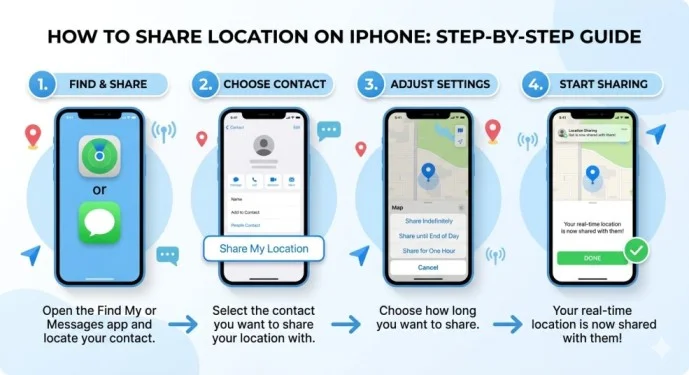
Sharing your location on an iPhone is a useful way to let friends, family members, or other trusted contacts know where you are. You can share your current location through apps such as Messages and Find My, or use Apple Maps to send a location.
If you’re wondering how do I share location on iPhone or how to share my location on iPhone, the process is simple once Location Services and location sharing are enabled.
This guide explains how to share location on iPhone using several built-in options.
Read also; WSG Meaning: What Does WSG Mean in Text & Texting?
How to Share Location on iPhone
The easiest way to share your location with another iPhone user is through the Messages app.
Follow these steps:
- Open Messages on your iPhone.
- Open an existing conversation or start a new one.
- Tap the plus button next to the text field.
- Select Location.
- Choose the option to share your location.
- Follow the on-screen instructions to send it.
Your contact can then view the location you shared.
The exact options may vary depending on your iOS version and the type of conversation.
How Do I Share My Location on iPhone Using Messages?
If you’re asking how do I share my location on iPhone through Messages, you can use Apple’s built-in location-sharing option.
Open the conversation with the person you want to contact and tap the plus button. Select Location and follow the prompts.
Depending on the available options, you may be able to share your current location or share your location for a period of time.
This method is convenient because you can send your location without opening a separate navigation application.
How to Share My Location on iPhone With Find My
Find My is another built-in way to share your location.
To share your location using Find My:
- Open the Find My app.
- Tap the People tab.
- Tap the Add button.
- Choose Share My Location.
- Select a contact.
- Follow the instructions to send the invitation.
Once the person accepts the request, they may be able to see your location according to the sharing settings you selected.
How to Share Location on iPhone With a Contact
You can share your location with a specific person through Apple’s location-sharing features.
First, make sure Location Services are enabled.
Then:
- Open Find My.
- Select People.
- Tap Add.
- Select Share My Location.
- Choose the person.
- Select how long you want to share your location.
Available sharing periods can include options such as one hour, until the end of the day, or indefinitely, depending on your iOS version and settings.
How to Turn On Location Sharing on iPhone
If location sharing isn’t working, check your Location Services settings.
Go to:
Settings → Privacy & Security → Location Services
Make sure Location Services is turned on.
You may also need to allow the specific app you’re using to access your location.
For example, if you’re trying to use Find My, check that Find My has the appropriate location permission.
How to Share Your Location With Family
If you’re part of an Apple Family Sharing group, you can use Apple’s Find My features to share locations with family members.
To check your location-sharing settings:
- Open Settings.
- Tap your Apple Account name.
- Select Find My.
- Check Share My Location.
- Adjust your settings as needed.
Family members can then use supported Apple features to see your location when you’ve chosen to share it.
How to Share Location on iPhone With Find My
Find My is particularly useful when you want ongoing location sharing rather than simply sending your current position once.
To start:
- Open Find My.
- Tap People.
- Tap Add.
- Select Share My Location.
- Choose a contact.
- Select the desired sharing duration.
You can return to Find My later to manage or stop location sharing.
How to Share Your Current Location
If you only want to tell someone where you are right now, you can send your current location through Messages.
Open the conversation, choose the location option, and send your location.
This is useful when:
- You’re meeting a friend.
- Someone is picking you up.
- You’re traveling.
- You want someone to know where you are.
- You’re trying to find someone at a crowded location.
A one-time location share is different from continuously sharing your location.
How to Share Location on iPhone With Apple Maps
Apple Maps can also help you share a location.
If you want to send a particular place rather than continuously share your personal location:
- Open Maps.
- Search for a location.
- Select the location.
- Tap the Share button.
- Choose the app or contact you want to use.
This is especially useful when you’re trying to tell someone where to meet you.
For example, you could search for a restaurant, shopping center, airport, or other destination and send its location directly.
How to Share a Location From Google Maps on iPhone
If you use Google Maps, you can also share locations from the app.
To share a place:
- Open Google Maps.
- Search for a location.
- Select the location.
- Tap Share.
- Choose the contact or messaging app.
Google Maps also has its own location-sharing feature for people who want to share their live location.
The exact steps may vary depending on the current version of the app.
How to Share Location on iPhone Through WhatsApp
If you use WhatsApp, you can share your location directly inside a conversation.
Generally:
- Open WhatsApp.
- Open a conversation.
- Tap the attachment or plus button.
- Choose Location.
- Select the appropriate location-sharing option.
- Follow the instructions.
WhatsApp can offer options for sharing your current location or live location.
Live location sharing can continue for a selected period, so make sure you understand which option you’re choosing before sending it.
How to Stop Sharing Your Location on iPhone
You can stop sharing your location when you no longer want someone to see it.
One method is through Find My:
- Open Find My.
- Tap People.
- Select the person.
- Choose the option to stop sharing your location.
You can also manage the overall Share My Location setting through your iPhone’s Find My settings.
If you turn off location sharing completely, people who previously had access may no longer be able to see your location.
How to Stop Sharing Location With Everyone
If you want to stop sharing your location with everyone through Apple’s location-sharing system, you can manage the Share My Location setting.
Go to:
Settings → Privacy & Security → Location Services
You can also check:
Settings → Apple Account → Find My
From there, review the Share My Location setting and make changes as needed.
Be aware that turning off certain location permissions can affect other apps and features that rely on your location.
Why Can’t I Share My Location on iPhone?
There are several reasons location sharing might not work.
Common causes include:
- Location Services is turned off.
- The app doesn’t have location permission.
- Find My isn’t configured correctly.
- Your iPhone isn’t connected to the internet.
- The other person isn’t using a compatible service.
- Your Apple Account settings need attention.
- The app needs to be updated.
- Temporary network problems are preventing the location from being shared.
Start by checking your Location Services settings and internet connection.
How to Fix Location Sharing on iPhone
If you’re having trouble sharing your location, try these steps.
Check Location Services
Go to:
Settings → Privacy & Security → Location Services
Make sure Location Services is enabled.
Check the App Permission
Find the app you’re using and make sure it has permission to access your location.
Check Share My Location
Open your Find My settings and make sure Share My Location is enabled if you want to use Apple’s location-sharing features.
Check Your Internet Connection
Location-sharing services generally need a network connection to communicate your location.
Try switching between Wi-Fi and cellular data if the connection appears unreliable.
Restart Your iPhone
A simple restart can sometimes resolve temporary software or connectivity problems.
Update iOS
If your iPhone is running an older version of iOS, check for available software updates.
Does Sharing Location Drain Your iPhone Battery?
Location services can use some battery power because the iPhone may use GPS, cellular networks, Wi-Fi, and other technologies to determine location.
However, occasional location sharing generally isn’t a major battery concern for most users.
Continuous or frequent location-based activity can have a greater effect on battery life.
If battery life is important, review which apps have location access and whether they need it continuously.
Is Sharing Your Location Safe?
Location sharing can be useful, but your location is sensitive information.
Only share your location with people you trust.
Before enabling ongoing location sharing, consider:
- Who can see your location?
- How long will they have access?
- Do you still need location sharing enabled?
- Are you sharing with the correct person?
- Is the app or service trustworthy?
If you no longer want someone to have access, stop sharing your location.
One-Time Location vs. Ongoing Location Sharing
These two options are different.
A one-time location share tells someone where you are at a particular moment.
Ongoing location sharing allows someone to continue seeing your location according to the sharing period and service settings.
Use one-time sharing when you simply need to tell someone where you are.
Use ongoing sharing when you have a specific reason to let a trusted person follow your location for a period of time.
How to Share Location on iPhone With Android Users
You can share a location with someone who uses Android, but the method may be different from Apple’s Find My system.
You can send a location through messaging apps that support both iPhone and Android, such as WhatsApp or Google Maps.
For a simple one-time location, you can also share a map location through a messaging service.
The recipient doesn’t necessarily need to have an iPhone to receive a location sent through a cross-platform service.
How to Share Location on iPhone Without Find My
If you don’t want to use Find My, you have other options.
You can use:
- Messages
- Apple Maps
- Google Maps
- Other messaging applications that support location sharing
The best method depends on whether you want to share your current position, a specific destination, or your location continuously.
Final Thoughts
Learning how to share location on iPhone is straightforward once you know which Apple feature or app to use. Find My is useful for ongoing location sharing, while Messages can be convenient for sending your location during a conversation.
You can also use Apple Maps, Google Maps, WhatsApp, and other compatible services when you need to share a specific place or communicate with someone using another type of phone.
Before sharing your location, always check who you’re sharing it with and how long they will have access. When you no longer need location sharing, remember to turn it off.
Frequently Asked Questions
How do I share location on iPhone?
Open Messages or Find My and use the location-sharing option. In Find My, open the People tab, tap Add, and choose Share My Location.
How do I share my location on iPhone with someone?
You can share your location through Find My, Messages, or compatible third-party apps. Choose the person you want to share with and select the appropriate location-sharing option.
How to share location on iPhone quickly?
Messages is one of the easiest options. Open a conversation, tap the plus button, choose Location, and follow the instructions.
What is the easiest way to share location on iPhone?
For Apple users, Find My and Messages are convenient options. For cross-platform sharing, apps such as Google Maps or WhatsApp can also be useful.
Can I share my iPhone location with an Android phone?
Yes. You can use cross-platform services such as Google Maps or WhatsApp to share your location with an Android user.
Can I share my location temporarily?
Yes. Depending on the service you’re using, you can choose a limited sharing period instead of sharing your location indefinitely.
How do I stop sharing my location?
Open Find My, select the person under the People tab, and choose the option to stop sharing your location. You can also manage location-sharing settings through your iPhone settings.
Why can’t I share my location?
Check that Location Services and the relevant app permissions are enabled. Also check your internet connection and Find My settings.
Does someone get notified when I stop sharing my location?
The behavior can vary depending on the Apple feature and iOS version. If you’re concerned about privacy, review the specific sharing settings before making changes.