

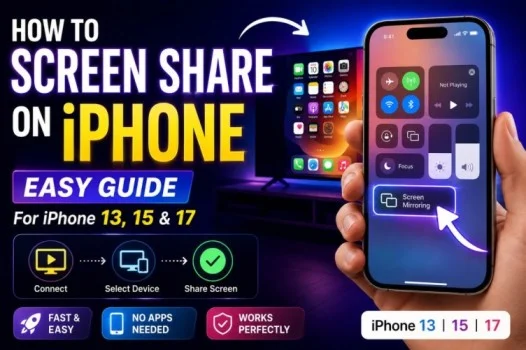
Knowing how to screen share on iPhone can be useful when you want to show someone an app, explain a problem, present information, or display your phone on a larger screen. Apple provides built-in options that make screen sharing simple without requiring complicated software.
Whether you use an iPhone 13, iPhone 15, or iPhone 17, the basic process is similar. You can share your screen through FaceTime or mirror your display to a compatible TV, Mac, or other AirPlay-enabled device.
How to Screen Share on iPhone
The easiest way to share your iPhone screen with another person is through FaceTime. This is particularly useful when you are already having a video call.
To share your screen:
- Open the FaceTime app.
- Start a FaceTime call with your contact.
- Tap the screen to display the call controls.
- Tap the Share button.
- Select Share My Screen.
Once screen sharing starts, the other person can see what is displayed on your iPhone. You can open another app, browse a website, or demonstrate a feature while remaining on the call.
Remember that anything visible on your screen may be seen by the other person, so avoid opening private messages, banking apps, passwords, or other sensitive information.
How to Do Screen Share on iPhone Using AirPlay
If you want to display your iPhone screen on a television, Mac, or compatible wireless display, AirPlay is a convenient option.
First, make sure your iPhone and the receiving device are connected to the same Wi-Fi network. Then follow these steps:
- Open Control Center by swiping down from the upper-right corner.
- Tap Screen Mirroring.
- Select the device where you want to display your screen.
- Enter the AirPlay passcode if one appears.
- Your iPhone screen should now appear on the selected device.
AirPlay is useful for showing photos, presentations, websites, apps, and other content on a larger display.
When you finish, open Control Center again, tap Screen Mirroring, and choose Stop Mirroring.
How to Screen Share on iPhone 13
The iPhone 13 supports both FaceTime screen sharing and AirPlay screen mirroring. If you want to share your screen with another person, FaceTime is one of the simplest options.
Start a FaceTime call, open the call controls, and select the screen-sharing option. You can then navigate around your phone while the other participant views your display.
For a TV or compatible Mac, open Control Center and select Screen Mirroring. Choose the available AirPlay device and enter a passcode if requested.
The exact appearance of the controls may differ depending on which version of iOS your iPhone 13 is running.
How to Screen Share on iPhone 15
The iPhone 15 makes it easy to share or mirror your display. During a FaceTime call, you can use the built-in screen-sharing feature to show your display to another participant.
If you want to mirror your iPhone 15 to a larger screen, swipe down from the upper-right corner to open Control Center. Select Screen Mirroring and choose your compatible AirPlay device.
If your TV or Mac does not appear, check that both devices are connected to the same Wi-Fi network. You should also make sure that the receiving device supports AirPlay.
How to Screen Share on iPhone 17
The iPhone 17 can also be used for screen sharing through supported communication and wireless display features. During a compatible FaceTime call, select the screen-sharing option from the call controls.
For wireless display mirroring, open Control Center and select Screen Mirroring. Choose your compatible device and enter the AirPlay code if necessary.
Because Apple can change menu layouts and features through iOS updates, the exact location or wording of an option may vary slightly.
Read Also : Best Instagram Video Downloader Reddit: Android Guide
What to Do When iPhone Screen Sharing Is Not Working
Sometimes screen sharing may fail because of a network connection, device compatibility, or software issue.
Start by checking your internet or Wi-Fi connection. If you are using AirPlay, make sure both devices are connected to the same Wi-Fi network. Also check that the receiving TV, Mac, or other device supports AirPlay.
Restarting both devices can resolve temporary connection problems. It is also worth checking whether your iPhone has a pending software update.
If you are using FaceTime, make sure the other participant has a compatible device and a stable internet connection. If screen sharing still does not work, try disconnecting other wireless devices and reconnecting to the receiving device.
Read Also : How to Screen Share on iPhone: Easy Guide for iPhone 13, 15 & 17
Tips for Safe iPhone Screen Sharing
Before you start sharing your screen, close apps containing private information. Notifications can also reveal personal messages while your screen is being shared.
Avoid entering passwords, payment details, or other confidential information during a screen-sharing session. When you finish, stop screen sharing immediately so your display is no longer visible to the other person or device.
Frequently Asked Questions
1. Can I screen share directly from an iPhone?
Yes. You can share your iPhone screen through supported FaceTime calls or mirror it to a compatible device using AirPlay.
2. How do I screen share on iPhone 13?
Open FaceTime and select the screen-sharing option during a call. You can also use Control Center > Screen Mirroring to connect your iPhone 13 to a compatible AirPlay device.
3. How do I screen share on iPhone 15?
Swipe down from the upper-right corner to open Control Center, tap Screen Mirroring, and select your compatible device. You can also share your display through FaceTime.
4. How do I screen share on iPhone 17?
Start a supported FaceTime call and choose the screen-sharing option, or open Control Center and select Screen Mirroring to connect to a compatible AirPlay device.
5. Why is my iPhone not showing my TV for screen mirroring?
Make sure your iPhone and TV are connected to the same Wi-Fi network and that the TV supports AirPlay. Restarting both devices can also help resolve connection problems.