
Losing a Word document before saving it can be frustrating, especially after spending hours writing or editing. Fortunately, Microsoft Word includes several recovery features that may help you retrieve an unsaved document.
If you are searching for how to recover a Word document not saved, how to recover a Word document that was not saved, or how to recover an unsaved Word document on Mac, this guide explains the most useful methods for both Windows and Mac.
How to Recover an Unsaved Word Document on Windows
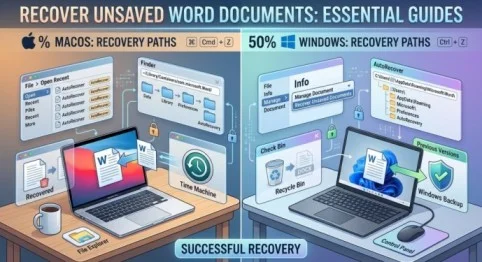
If you are using Microsoft Word on Windows, start with Word’s built-in recovery option.
Method 1: Use Recover Unsaved Documents
Open Microsoft Word and follow these steps:
- Open Word.
- Select File.
- Choose Info.
- Select Manage Document or Manage Documents.
- Click Recover Unsaved Documents.
- Look through the available files.
- Open the document you want to recover.
- Immediately select Save As and save it to a safe location.
The wording can vary depending on your version of Microsoft Word.
If you find the document, save it immediately because recovered files may be temporary.
Method 2: Check the Recent Documents List
If you previously opened or saved the document, it may appear in Word’s recent files.
Open Word and select:
File → Open → Recent
Look through the list for the missing document.
If you find it, open it and save a new copy.
This method is especially useful if the document was previously saved but your latest changes were lost.
Method 3: Check the Document Recovery Pane
When Word unexpectedly closes, it may display a Document Recovery pane the next time you open the application.
Look for files with names similar to:
- Recovered
- AutoRecovered
- Unsaved
- Your original document name
Open the most recent version and check whether it contains your missing work.
Then save the document immediately.
How to Recover a Word Document That Was Not Saved on Mac
If you are searching for how to recover a Word document not saved Mac, Microsoft Word for macOS provides several possible recovery locations.
First, reopen Microsoft Word.
If Word recovered your document after an unexpected shutdown, you may see a Document Recovery panel.
Check each recovered version carefully and save the correct one.
If nothing appears, you can manually look for AutoRecovery files.
Method 4: Check the AutoRecovery Folder on Mac
Microsoft Word can store AutoRecovery information in a special folder.
The exact location can vary depending on your Word version and installation.
One way to check is through Finder:
- Open Finder.
- Select Go from the menu bar.
- Choose Go to Folder.
- Check Microsoft’s current documentation for the AutoRecovery location used by your Word version.
- Look for files associated with Word recovery.
- Open any relevant file with Word.
- Save the recovered document immediately.
Do not randomly delete files from recovery folders because they may contain the only remaining copy of your work.
Method 5: Search Your Mac for the Document
If you cannot find the file in Word, use Finder’s search function.
Search for:
- The document name
- Part of the document name
You can also check locations such as:
- Documents
- Downloads
- Desktop
- iCloud Drive
- OneDrive
- Other folders where you normally save Word files
Sometimes the document exists but was saved in a different location than expected.
Method 6: Check the Trash
If you accidentally deleted a saved Word document, check the Mac Trash.
Open Trash and search for the document.
If you find it:
- Right-click the file.
- Choose Put Back.
- Open the document in Word.
- Save a new copy.
This method applies to deleted files rather than documents that were never saved.
Check OneDrive or Cloud Storage
If you use Microsoft 365 and save documents to OneDrive, you may have additional recovery options.
Open your OneDrive files and look for the missing document.
If the document was previously saved, you may also be able to use its version history to restore an earlier version.
This can be particularly useful when a document was saved but recent changes disappeared.
How to Recover an Unsaved Word Document With AutoRecover
AutoRecover is one of Word’s most useful recovery features.
It periodically stores recovery information while you work.
However, AutoRecover is not the same as manually saving your document.
For example, if Word is configured to save recovery information every few minutes, changes made immediately before a crash may not appear in the recovered version.
For this reason, you should still press Ctrl + S on Windows or Command + S on Mac regularly.
What If You Closed Word Without Saving?
If you accidentally selected Don’t Save, recovery may still be possible in some circumstances, but it is not guaranteed.
Immediately reopen Word and check:
- Document Recovery
- Recover Unsaved Documents
- Recent documents
- AutoRecovery files
- Cloud storage
The sooner you check, the better your chances may be.
Avoid creating or deleting large numbers of files until you have searched for the missing document.
What If Word Did Not Recover My Document?
If none of the methods work, the document may not have a recoverable copy.
For a previously saved document, check:
- OneDrive
- iCloud Drive
- Time Machine on Mac
- Windows File History
- Recycle Bin
- Mac Trash
- Backup drives
- Previous versions
If the document was never saved and Word never created an AutoRecovery copy, recovery may not be possible.
Read Also : How to Hide or Pause Location on Life360 Without Anyone Knowing
Final Thoughts
If you are wondering how to recover a Word document not saved, start with Microsoft Word’s built-in recovery options. Check the Document Recovery panel, Recover Unsaved Documents, recent files, and AutoRecovery locations.
For how to recover a Word document that was not saved on Mac, also check Finder, cloud storage, Trash, and any available backup system.For the future, regularly save your documents, use AutoSave when available, and keep important files backed up.
Frequently Asked Questions
How do I recover a Word document that was not saved?
Open Word and check Document Recovery, Recover Unsaved Documents, Recent files, and AutoRecovery files. If the document was stored in the cloud, also check your cloud storage.
How do I recover an unsaved Word document on Mac?
Reopen Word and check for the Document Recovery panel. You can also search Finder for the document and check Microsoft’s current AutoRecovery folder location for your Word version.
Can I recover a Word document I accidentally closed without saving?
Possibly. Word may have created an AutoRecovery copy. Reopen Word and check the recovery options immediately.
Can I recover a Word document after my Mac crashed?
Yes, there may be a recovery copy if AutoRecovery was enabled. Reopen Word and look for recovered documents.