

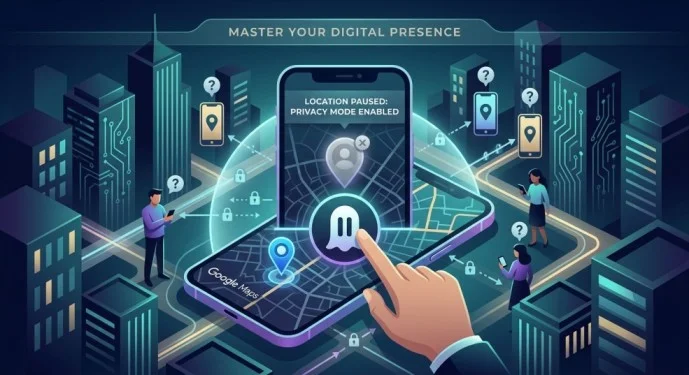
If you are searching for how to hide location on Life360, how to pause Life360 location, or how to pause Life360 without anyone knowing on iPhone, you may be looking for more control over your location privacy.
Life360 is designed around location sharing between members of a Circle. Because of this, there is an important difference between temporarily stopping location sharing, changing your phone’s privacy permissions, and secretly trying to make your location appear somewhere else.
This guide explains the legitimate privacy options available on iPhone, what happens when you pause location sharing, and what other Circle members may be able to see.
Can You Pause Your Life360 Location?
Yes, Life360 provides settings that allow users to manage location sharing. Depending on your app version, account, Circle settings, and permissions, you may be able to turn off location sharing from within the Life360 app.
However, turning off location sharing does not necessarily happen without anyone knowing.
Life360 is specifically designed to notify or indicate when certain location-sharing settings have changed. Other Circle members may see that your location is unavailable or that location sharing has been disabled.
Therefore, there is no reliable official method to guarantee that you can pause your location while making it appear completely normal to everyone else.
How to Pause Life360 Location on iPhone
If you simply want to stop sharing your location temporarily, you can check Life360’s location-sharing settings.
The general process is:
- Open the Life360 app on your iPhone.
- Open the relevant Circle.
- Find the location-sharing or location settings.
- Review the current sharing status.
- Use the available option to stop or pause location sharing.
- Confirm the change if Life360 asks you to do so.
The exact wording and location of these controls can change as Life360 updates its app.
After location sharing is disabled, the app may indicate that your location is unavailable to other members.
How to Hide Location on Life360
There is a difference between hiding your location and stopping location sharing.
If you do not want Life360 to access your location, you can manage its location permissions through your iPhone’s Privacy & Security settings.
To review Life360’s location permission:
- Open Settings on your iPhone.
- Tap Privacy & Security.
- Select Location Services.
- Find Life360.
- Review the available location permission.
- Choose the setting that matches your privacy needs.
Depending on your iOS version, the available options can include choices such as allowing location access while using the app or allowing access more broadly.
Changing this permission can affect how Life360 works and may cause your location to become unavailable to Circle members.
Can You Pause Life360 Without Anyone Knowing on iPhone?
If by “without anyone knowing” you mean preventing Life360 from displaying your current location while also making it look as though nothing changed, there is no guaranteed official method.
Life360’s purpose is to communicate location information among Circle members. If location sharing stops working, the service may display an indication that your location is unavailable.
For privacy, it is better to use Life360’s own settings and your iPhone’s location permissions rather than attempting to bypass the app’s location system.
Does Airplane Mode Hide Your Life360 Location?
Airplane Mode is not a dependable privacy solution for Life360.
Turning on Airplane Mode changes your phone’s network connections, but it does not provide a guaranteed way to make your Life360 location disappear without an indication.
If you are trying to manage location privacy, using your iPhone’s official Location Services controls is a clearer and more predictable approach.
How to Manage Life360 Location Permissions on iPhone
iPhone provides several privacy controls for apps that request location access.
To review them:
- Open Settings.
- Tap Privacy & Security.
- Tap Location Services.
- Select Life360.
- Review the permission options.
- Adjust the setting according to your privacy preference.
You may also see an option related to Precise Location.
When Precise Location is disabled for an app, the app may receive a less precise location rather than your exact location. However, this does not necessarily mean that Life360 will stop showing your general location.
What Is Precise Location on iPhone?
Precise Location is an iPhone privacy control that determines whether an app can access your more exact location.
If you turn off Precise Location for an application, the application may receive an approximate location instead.
This can be useful when you want an app to know roughly where you are without giving it your exact position.
Keep in mind that changing this setting can affect Life360’s location-based features.
Read Also : How to Recover an Unsaved Word Document on Mac & Windows
Can You Make Life360 Show a Different Location?
Life360 is designed to report your device’s location rather than provide a normal setting for manually choosing a fake location.Using unauthorized tools or techniques to manipulate GPS information can create inaccurate location data and may interfere with Life360’s functionality.
If your goal is simply to protect your privacy, changing your location-sharing permissions is a safer and more transparent approach.
Why You Should Avoid Unofficial Life360 Tricks
Search results sometimes recommend methods involving modified applications, GPS-spoofing tools, or other techniques designed to make Life360 report inaccurate information.
These methods can create several problems.
They may:
- Compromise your account or device
- Install unwanted software
- Cause Life360 to malfunction
- Produce inaccurate location information
- Create unexpected notifications
- Violate service rules
- Make troubleshooting more difficult
If your main concern is privacy, the safest option is to use the controls provided by Life360 and iOS.
Final Thoughts
If you are searching for how to hide location on Life360, the most important thing to understand is that there is a difference between managing your privacy and secretly bypassing location sharing.
On an iPhone, you can review Life360’s Location Services permissions and use the location-sharing controls available in the app. You can also review settings such as Precise Location to determine how much location information the app can access.
Frequently Asked Questions
How do I pause Life360 location?
Open Life360 and review the location-sharing settings for your Circle. The exact controls may vary by app version and account configuration.
How do I hide my location on Life360?
You can review Life360’s location permissions through iPhone Settings > Privacy & Security > Location Services. Changing these permissions can make your location unavailable to Life360.
Can I pause Life360 without anyone knowing on iPhone?
There is no guaranteed official way to stop Life360 from receiving your location while also ensuring that Circle members cannot tell that location sharing has changed.
Does turning off Precise Location hide me from Life360?
Not necessarily. Turning off Precise Location can provide an approximate location instead of an exact one, but it does not automatically make you invisible to Life360.
Does Airplane Mode stop Life360?
Airplane Mode can interrupt communication, but it is not a reliable or guaranteed way to hide your Life360 location. Your location may simply stop updating or appear unavailable.