

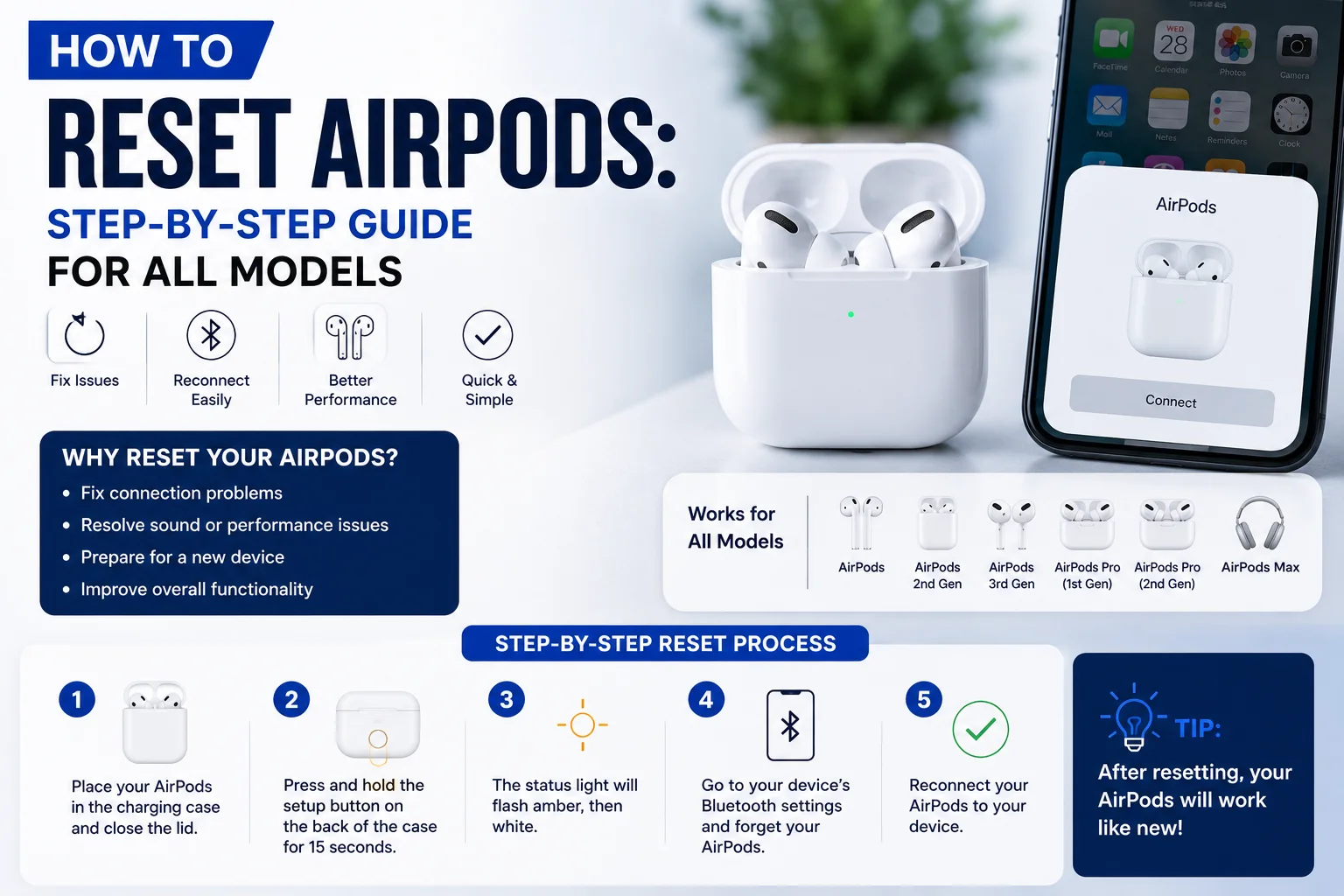
If your AirPods aren’t connecting properly, keep disconnecting, or are experiencing audio issues, resetting them can often solve the problem. Whether you own the original AirPods, AirPods (2nd or 3rd generation), AirPods Pro, or AirPods Max, performing a reset restores the device to its factory settings and allows you to pair it with your devices again.
In this guide, you’ll learn how to reset AirPods, how to factory reset AirPods, and how to reset AirPods Pro using simple step-by-step instructions.
Read also; Amazon Associates Program: How to Join & Earn Affiliate Income
Why Should You Reset Your AirPods?
Resetting your AirPods can fix many common issues, including:
- AirPods not connecting to your iPhone or iPad
- Frequent Bluetooth disconnections
- One AirPod not working
- Charging problems
- Pairing errors
- Audio glitches or poor sound quality
- Preparing AirPods for a new owner
A factory reset removes saved Bluetooth connections, allowing you to set up the AirPods as if they were new.
Before You Reset Your AirPods
Before starting the reset process, make sure you:
- Place both AirPods inside the charging case.
- Charge the AirPods and charging case to at least 20%.
- Keep your iPhone, iPad, or Mac nearby if you plan to reconnect immediately.
- Ensure Bluetooth is enabled on your device after the reset.
How to Reset AirPods
Follow these steps to reset most AirPods models:
Step 1: Place the AirPods in the Charging Case
Insert both AirPods into the charging case and close the lid.
Wait for about 30 seconds.
Step 2: Open the Charging Case
Open the lid while leaving the AirPods inside.
Step 3: Forget the AirPods on Your Device
On your iPhone or iPad:
- Open Settings.
- Tap Bluetooth.
- Tap the ⓘ icon next to your AirPods.
- Select Forget This Device.
- Confirm your choice.
This removes the previous Bluetooth pairing.
Step 4: Press and Hold the Setup Button
Locate the setup button on the back of the charging case.
Press and hold it for approximately 15 seconds until the status light flashes amber and then white.
This indicates the AirPods have been reset successfully.
Step 5: Reconnect Your AirPods
Bring the charging case close to your iPhone or iPad.
Open the lid and follow the on-screen pairing instructions.
Your AirPods are now ready to use.
How to Factory Reset AirPods
A factory reset completely removes your saved settings and Bluetooth pairings.
The process is the same as above:
- Forget the AirPods from your Bluetooth settings.
- Hold the setup button until the light flashes amber and then white.
- Pair the AirPods again as a new device.
This restores your AirPods to their original factory state.
How to Reset AirPods Pro
The process for AirPods Pro is almost identical.
Reset AirPods Pro
- Place both earbuds in the charging case.
- Close the lid for 30 seconds.
- Open the lid.
- Forget the AirPods Pro from your Bluetooth settings.
- Press and hold the setup button on the back of the case.
- Wait until the status light flashes amber, then white.
- Reconnect your AirPods Pro to your Apple device.
This method works for both AirPods Pro (1st generation) and AirPods Pro (2nd generation).
How to Reset AirPods Max
If you’re using AirPods Max, follow these steps:
- Charge the headphones.
- Press and hold the Noise Control button and the Digital Crown together.
- Continue holding for about 15 seconds.
- Release the buttons when the LED flashes amber and then white.
The headphones have now been reset.
What Happens After Resetting AirPods?
After completing the reset:
- Previous Bluetooth pairings are removed.
- You’ll need to reconnect the AirPods to your devices.
- Personalized settings may need to be configured again.
- Most software-related issues are often resolved.
Tips to Prevent AirPods Problems
To keep your AirPods working properly:
- Keep the charging case clean.
- Update your Apple devices regularly.
- Avoid exposing AirPods to water unless your model is water-resistant.
- Charge the case before the battery becomes completely empty.
- Store the AirPods in their case when not in use.
Regular maintenance can improve performance and battery life.
Conclusion
Knowing how to reset AirPods is useful when troubleshooting connection issues, pairing errors, or audio problems. Whether you’re using standard AirPods, AirPods Pro, or AirPods Max, the reset process is quick and can restore normal performance in just a few minutes. If problems continue after resetting, make sure your devices are updated to the latest software or contact Apple Support for additional assistance.
Frequently Asked Questions (FAQs)
How do I reset my AirPods?
Place the AirPods in the charging case, forget them from your Bluetooth settings, press and hold the setup button until the light flashes amber and then white, and reconnect them.
How do I factory reset AirPods?
A factory reset removes all saved Bluetooth connections. Simply follow the standard AirPods reset process and pair them again as a new device.
Does resetting AirPods delete anything?
Resetting removes Bluetooth pairings and connection settings but does not affect your Apple ID or iCloud account.
How do I reset AirPods Pro?
The reset steps for AirPods Pro are the same as standard AirPods: use the charging case, hold the setup button until the status light flashes amber and white, then reconnect the earbuds.
Why won’t my AirPods reset?
If your AirPods won’t reset, ensure the charging case has enough battery power and that you’re holding the setup button long enough. Cleaning the charging contacts may also help.
Will resetting AirPods fix connection issues?
Yes. A factory reset often resolves Bluetooth pairing problems, connection drops, and other software-related issues.